
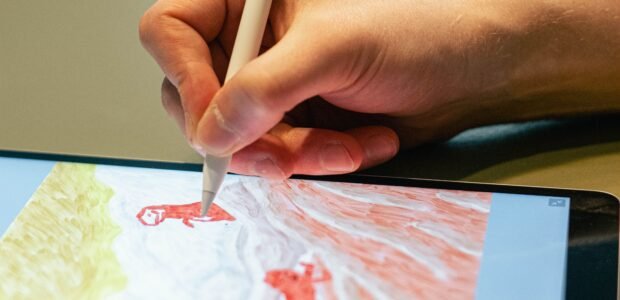
Digital art used to mean expensive gear and a steep learning curve. Today, a good drawing tablet can cost far less than most people expect, and XP-Pen is one of the brands that made that shift possible. Whether you are an illustrator, a photo editor, a teacher or a complete beginner, this guide explains what XP-Pen offers, how the product lines differ, and how to pick the model that fits your work.
Looking for current offers? Jump to the savings section at the end, or visit our XP-Pen deals page.
About XP-Pen
XP-Pen was established in 2005 and is now headquartered in Shenzhen, China. Since 2022 the brand has styled its name as XPPen, and it has been part of the Hanvon Ugee Group since 2019. It makes graphics tablets, pen displays and digital styluses for digital drawing, graphic design, photo editing, education and business use.
The brand built its reputation on offering features once found only on pricier tablets, such as high pressure sensitivity, battery-free styluses and large work areas, at friendlier prices.
Pen Tablet or Pen Display?
Before comparing models, it helps to understand the two main types:
- Pen tablet (no screen): you draw on a flat surface while looking at your computer monitor. It is usually cheaper and more portable, but it takes a little time to get used to the hand-eye separation.
- Pen display (with a screen): you draw directly on a screen, which feels like paper. It costs more and needs a bit more desk space, but it is easier for most beginners to learn and great for detailed work.
The XP-Pen Product Lines Explained
XP-Pen organises its range into several series. Exact models change often, so always confirm current details on the product page.
- Star series: entry-level pen tablets in small to medium sizes. Models such as the Star G640 and Star G430S are popular for sketching, note-taking, digital signatures and even rhythm games like osu!.
- Deco series: pen tablets that sit a step above Star, including the budget-friendly Deco Fun range and the Deco Pro series, which offers newer features such as 16K pressure levels and Bluetooth connectivity.
- Artist series: pen displays in sizes from compact 12-inch models to large 22-inch screens, built for artists who want to draw directly on the screen.
- Artist Pro series: higher-end pen displays with better colour coverage and sharper screens, aimed at professionals who care about colour accuracy.
- Artist Ultra series: premium pen displays with OLED screens and a slim design.
- Magic Drawing Pad: an all-in-one drawing device with a paper-like display, designed for drawing and note-taking without connecting to a computer.
Explore XP-Pen drawing tablets and pen displays
Key Features to Understand
Spec sheets can feel confusing, so here is what the main terms actually mean:
- Pressure levels: how many steps of pen pressure the tablet can detect, from a light line to a thick, dark stroke. Older and entry-level models commonly offer 8192 levels, while newer ones go up to 16K. For most hobby artists, both are more than enough.
- Battery-free stylus: the pen never needs charging, so it is always ready to use.
- Tilt support: lets the pen respond to the angle you hold it at, which helps with shading in many art programs.
- Work area: the size of the drawing surface. A bigger area gives more room to move, while a smaller one is easier to carry.
- Display quality (for pen displays): look at the colour coverage, such as sRGB or Adobe RGB, and whether the screen is laminated and anti-glare for a more natural feel.
- Shortcut keys and dials: programmable buttons that speed up common actions like undo, zoom and brush size.
- Compatibility: XP-Pen products generally work with Windows, macOS and Linux, and many models also support Android devices and Chromebooks. Check the exact model before you buy.
Which XP-Pen Is Right for You?
- Complete beginner or tight budget: start with a Star or Deco Fun pen tablet to see whether digital drawing suits you.
- Signing documents, teaching online or taking notes: a small, simple Star model is usually enough.
- Illustrators and comic artists: a mid-size Deco Pro tablet or an Artist pen display gives a comfortable work area and better control.
- Colour-sensitive professionals: look at the Artist Pro or Artist Ultra series for stronger colour performance.
- Drawing on the go without a computer: consider the Magic Drawing Pad.
- Photo editors: a medium pen tablet is a precise and affordable upgrade from a mouse.
Find the right XP-Pen for your setup
Setup Tips for Beginners
- Install the official driver from the XP-Pen website, and restart your computer.
- Calibrate the pen so the cursor lines up with the tip, especially on pen displays.
- Adjust pressure settings in the driver until your lines feel natural.
- Set up your shortcut keys for the actions you use most.
- Try free software such as Krita if you do not have a drawing program yet.
- Take care of your gear: clean the screen gently, and replace the pen nib when it wears down.
Common Mistakes When Buying a Tablet
- Buying more than you need: a simple tablet is often enough to learn the basics.
- Ignoring the screen size: too small feels cramped, while too large may not fit your desk.
- Not checking compatibility: make sure the tablet works with your computer, phone or software.
- Judging only by pressure levels: comfort, driver quality and surface feel matter just as much.
Looking to Save?
If you already know which XP-Pen you want, check our XP-Pen deals page for the latest offers. It is where we keep each current XP-Pen coupon code and XP-Pen discount code in one place, so you do not have to dig through the rest of this guide. Seasonal sales, such as Black Friday, are also good moments to look for offers on tablets and accessories.
Final Thoughts
XP-Pen makes digital drawing more accessible, with options for every budget and skill level. Start with how you plan to use the tablet, choose the type and size that fit, and upgrade later if your skills outgrow it.
Tags: XP-Pen, XPPen, drawing tablet, pen display, digital art, graphic tablet, Star series, Deco series, Artist series.